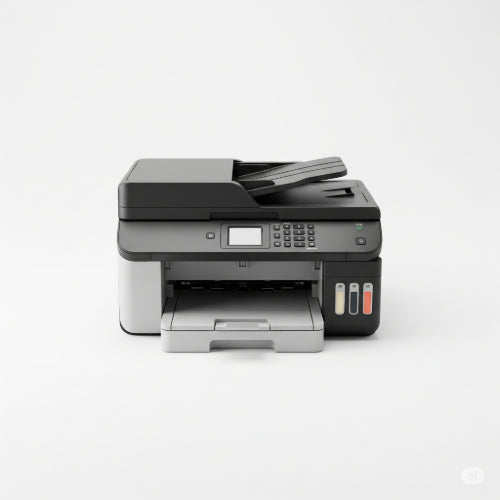
Print Perfection: How to Fix Printer Errors and Boost Your Printer's Efficiency
The printer – often taken for granted until it refuses to cooperate. Whether it's a critical document for a meeting or a child's homework, a printer error can instantly shift your day from productive to exasperated. And when it finally does print, is it doing so efficiently, or are you wasting ink, paper, and time?
Fear not, the temperamental printer doesn't have to be your nemesis! This blog will guide you through common printer errors and offer practical tips to not only fix them but also make your printing setup more efficient.
The Frustrating Faults: Common Printer Errors and Their Fixes
Let's tackle the most frequent headaches first:
1. "Printer Offline" or "Not Connected" Messages: This is perhaps the most common and misleading error. Your printer is clearly there, plugged in, but your computer insists it's not.
-
Check Physical Connections: For wired printers, ensure the USB cable is securely plugged into both the printer and the computer. For network printers, verify the Ethernet cable is connected or that the Wi-Fi connection is active.
-
Power Cycle Everything: Turn off your printer, computer, and even your router (for network printers). Wait about 30 seconds, then turn on the router first, then the printer, and finally your computer. This often resets network connections.
-
Verify Wi-Fi Connection (Wireless Printers): Check your printer's display panel to ensure it's connected to the correct Wi-Fi network. Re-enter credentials if necessary.
-
Set as Default Printer: Go to your computer's printer settings and ensure your desired printer is set as the default.
-
Update Printer Drivers: Outdated or corrupted drivers are a frequent culprit. Visit your printer manufacturer's website (e.g., HP, Epson, Canon, Brother) and download the latest drivers for your specific model and operating system. Install them and restart your computer.
-
Check Printer Queue: Clear any stuck print jobs from the printer queue. Sometimes a single corrupted job can prevent others from printing.
2. Paper Jams: The bane of every printer owner's existence.
-
Locate the Jam: Open all accessible panels and covers on your printer (front, back, top, bottom – consult your manual!). Use a flashlight if needed.
-
Gently Remove Paper: Pull the jammed paper slowly and carefully in the direction of the paper path. Avoid tearing it, as small pieces left inside can cause future jams.
-
Check for Obstructions: Look for any foreign objects like staples, paper clips, or small torn pieces of paper.
-
Fan the Paper Stack: Before loading new paper, fan the edges of the stack to prevent sheets from sticking together. Ensure you're using the correct paper type and weight for your printer.
-
Don't Overload Trays: Fill paper trays only to their recommended capacity.
3. Poor Print Quality (Streaks, Fading, Blurry Text): When your documents look less than crisp.
-
Check Ink/Toner Levels: This seems obvious, but ensure your cartridges aren't low or empty. Many printers provide on-screen alerts or software tools to check levels.
-
Run Print Head Cleaning/Nozzle Check: Most inkjet printers have a built-in utility (accessed via the printer's control panel or software) to clean print heads or perform a nozzle check. This clears clogged nozzles that cause streaks.
-
Shake Toner Cartridge (Laser Printers): For laser printers, gently remove the toner cartridge and rock it side-to-side a few times to redistribute the toner. This can sometimes extend its life if low.
-
Check for Protective Tapes/Seals: Ensure all protective tapes and seals have been removed from new ink/toner cartridges before installation.
-
Use Quality Paper: Cheap, thin, or heavily textured paper can sometimes affect print quality.
-
Calibrate Printer: Some printers offer a calibration option to align print heads and colors.
4. Printer Printing Blank Pages: Even more frustrating than streaks – nothing at all!
-
Ink/Toner Cartridges: This is almost always an empty or improperly installed ink/toner cartridge. Re-seat them or replace them if necessary.
-
Clogged Print Heads: Run several cycles of print head cleaning.
-
Incorrect Print Settings: Check your print dialogue box. Ensure you haven't accidentally selected "Grayscale" or a very low-quality draft mode if you expect color.
Boosting Your Printer's Efficiency: Smart Printing Habits
Beyond fixing errors, here's how to make your printer work smarter, not harder:
-
Print Preview is Your Friend: Always use print preview before hitting print. It helps you catch formatting errors, blank pages, and unnecessary pages, saving ink and paper.
-
Utilize Draft Mode for Internal Documents: For documents not requiring presentation quality, switch to "Draft" or "Economy" mode. This uses less ink/toner and prints faster.
-
Print Double-Sided (Duplex Printing): If your printer supports it, enable duplex printing to automatically print on both sides of the paper. This drastically cuts down on paper consumption.
-
Recycle Ink/Toner Cartridges: Many manufacturers and office supply stores have recycling programs. This is good for the environment and sometimes earns you discounts on new cartridges.
-
Consolidate Print Jobs: If you have multiple small documents, try to print them together to minimize the number of times your printer starts up and cycles.
-
Regular Cleaning: Periodically clean the exterior of your printer. For laser printers, you might want to carefully clean the inside (away from sensitive components) to remove toner dust.
-
Proper Storage of Ink/Toner: Store spare cartridges in a cool, dark place, in their original sealed packaging, to prolong their shelf life.
-
Monitor Printer Usage: For shared office printers, track usage to identify peak times or heavy users. This can help you decide if an upgrade or an additional printer is necessary.
A well-maintained printer that's used efficiently can save you time, money, and a lot of stress. By applying these troubleshooting tips and adopting smarter printing habits, you'll transform your printing experience from a source of frustration to a seamless part of your workflow. Happy printing!