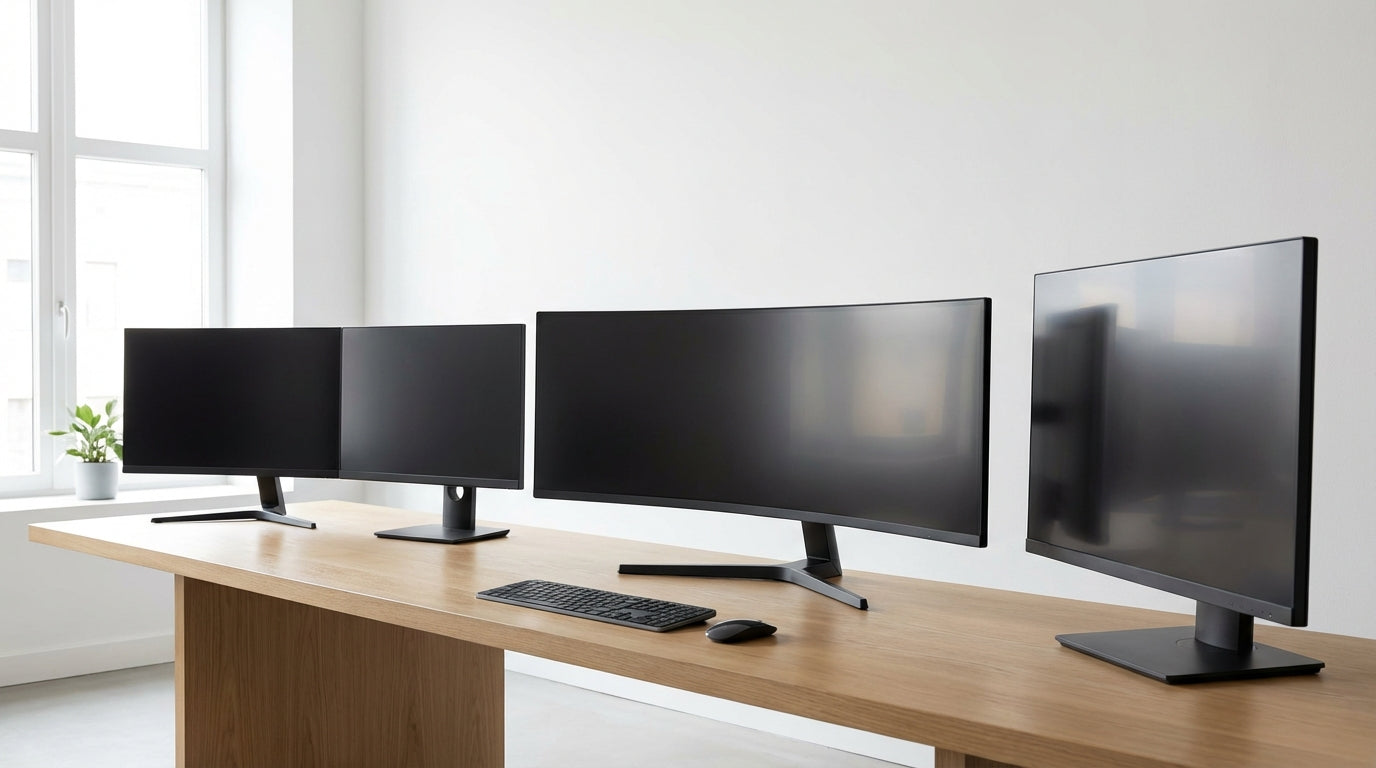
PC Monitor Buying Guide: How to Choose the Right Display
Choosing the right computer monitor can feel overwhelming with dozens of specs to compare and marketing claims to decode. Whether you're setting up a home office, upgrading your workstation, or building a dual-monitor setup, the wrong choice means eye strain, productivity losses, and buyer's remorse.
This guide cuts through the confusion to help you pick a monitor that fits your actual needs and budget. We'll cover the key specs that matter, explain real-world trade-offs, and give you a practical framework for comparing options.
At Tecisoft, we've helped thousands of customers navigate these decisions, from small business owners needing reliable displays to IT managers outfitting entire teams.
Key Specs That Actually Matter
Screen Size and Resolution
Screen size and resolution work together to determine how much you can see and how sharp it looks:
- 24-inch 1080p: Good for basic office work and tight budgetsIsmaila Tunks
- 27-inch 1440p: Sweet spot for most users—more screen real estate without tiny text
- 32-inch 4K: Best for detailed work like design, CAD, or financial analysis
- Ultrawide (34-inch+): Replaces dual-monitor setups but costs more
Rule of thumb: Sit about arm's length away. If text looks too small at that distance, you need a larger screen or lower resolution.
Panel Types: What's the Real Difference?
- IPS panels: Best color accuracy and viewing angles. Choose for design work, photo editing, or shared viewing
- VA panels: Better contrast and deeper blacks. Good for mixed use and darker rooms
- TN panels: Fastest response times but poor color and viewing angles. Only worth it for competitive gaming
For most business and productivity use, IPS panels offer the best balance of image quality and reliability.
Refresh Rate and Response Time
- 60Hz refresh rate: Fine for office work, web browsing, and general computing
- 75-144Hz: Smoother scrolling and cursor movement. Worth the modest cost increase
- 240Hz+: Only needed for competitive gaming
Response time (measured in milliseconds) matters less than marketing suggests. Anything under 10ms works fine for business use.
Choosing Based on Your Use Case
Home Office and General Productivity
Priorities: Eye comfort, text clarity, reliable color reproduction
- Size: 24-27 inches
- Resolution: 1080p (24") or 1440p (27")
- Panel: IPS for best viewing angles
- Features: Blue light reduction, height adjustment, USB hub
Design and Creative Work
Priorities: Color accuracy, large workspace, fine detail visibility
- Size: 27-32 inches minimum
- Resolution: 1440p or 4K
- Panel: IPS with wide color gamut (look for Adobe RGB or DCI-P3 coverage)
- Features: Hardware calibration support, multiple inputs
Business and Finance
Priorities: Multiple windows, spreadsheet readability, long-term comfort
- Consider: Two 24" monitors vs. one ultrawide
- Resolution: 1440p for sharper text and more spreadsheet columns
- Panel: IPS for consistent colors when sharing screens
- Features: Pivot capability for portrait orientation, KVM switching
Dual Monitor Setups
Key considerations:
- Buy identical models to avoid color and height mismatches
- Your graphics card needs multiple outputs (HDMI, DisplayPort)
- Plan for extra desk space and a monitor arm
- Budget 20-30% more than a single larger display
Essential Connectivity and Features
Ports You Actually Need
- HDMI: Standard for most computers and laptops
- DisplayPort: Better for higher resolutions and refresh rates
- USB-C: Convenient for laptops—can carry video, data, and power
- USB hub: Useful for connecting peripherals without reaching your computer
Adjustability Features
- Height adjustment: Prevents neck strain—worth paying extra
- Tilt: Basic but essential
- Swivel and pivot: Nice for shared workspaces
- VESA mount compatibility: Lets you add a monitor arm later
How to Compare and Decide
Step 1: Set Your Budget Range
- Budget: $150-250 (24" 1080p, basic features)
- Mid-range: $250-500 (27" 1440p IPS, good adjustability)
- Premium: $500+ (32" 4K, wide color gamut, advanced features)
Step 2: Define Your Must-Haves
Write down your non-negotiable requirements:
- Minimum screen size
- Required resolution
- Essential ports
- Adjustability needs
Step 3: Read Real User Reviews
Look for reviews that mention:
- Text clarity at normal viewing distances
- Color consistency across the screen
- Build quality and adjustability
- Dead pixel policies and warranty support
Frequently Asked Questions
What's the difference between 1080p and 1440p for office work?
1440p provides 77% more screen real estate, letting you fit more content without scrolling. Text appears sharper, and you can comfortably view two documents side by side on a 27-inch screen. The upgrade is worth it if your budget allows.
Do I need a curved monitor?
Curved monitors help with immersion on ultrawide displays (34+ inches) but offer minimal benefit on standard 16:9 monitors. For most business use, flat screens are more practical and cost-effective.
How important is color accuracy for non-creative work?
While you don't need professional-grade color accuracy for spreadsheets and email, consistent colors reduce eye strain and make shared presentations look better. IPS panels offer good enough color reproduction for most business users.
Should I buy a gaming monitor for office work?
Gaming monitors often have high refresh rates and low input lag but may sacrifice color accuracy or have aggressive styling. If you find a gaming monitor with good reviews for color and build quality, it can work well for productivity.
What size monitor is best for programming?
Most programmers prefer 27-inch 1440p monitors or larger. The extra vertical space helps with long code files, and higher pixel density makes text crisp. Some prefer ultrawide monitors to view documentation alongside code.
How do I know if my computer can drive a high-resolution monitor?
Check your computer's graphics outputs and specifications. Most modern computers handle 1440p fine, but 4K may require a dedicated graphics card. Older business laptops might be limited to 1080p at 60Hz.
Making Your Final Decision
Choosing the right monitor comes down to three key factors: matching the screen size and resolution to your work style, prioritizing the connectivity you need, and investing in adjustability for long-term comfort.
Your next steps:
- Measure your desk space and viewing distance
- List your must-have features and nice-to-haves
- Set a realistic budget including any needed cables or mounts
- Compare 2-3 models that meet your core requirements
- Check warranty terms and dead pixel policies
Ready to explore your options? Browse our complete monitors range at Tecisoft to find displays that match your needs and budget, backed by expert support and reliable warranty coverage.
Ready to find the right solutions for your needs?
Explore Collection