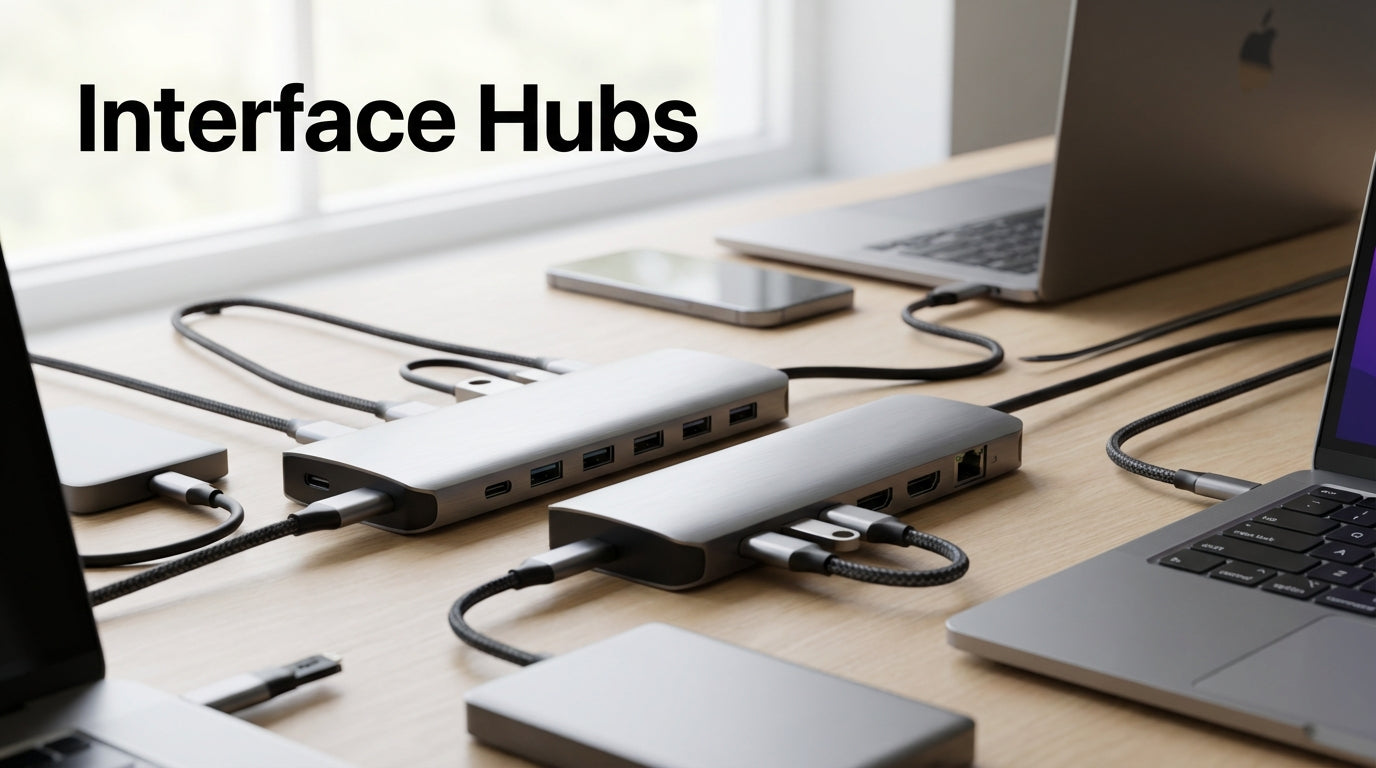
Interface Hubs Buying Guide: How to Choose the Right USB Hub
How to Choose the Right Interface Hub for Your Setup
Choosing the right USB hub can transform a cluttered workspace into an efficient connection center. With laptops offering fewer ports than ever and remote work requiring multiple peripherals, finding the right interface hub has become essential for productivity.
This guide breaks down the key decisions every buyer faces: power requirements, port configurations, and compatibility considerations. Whether you're setting up a home office, expanding a small business workspace, or managing IT for a growing team, understanding these factors will help you choose an interface hub that works reliably for years to come. At Tecisoft, we see these decisions daily and know that getting it right the first time saves both frustration and money.
Power Options: Bus-Powered vs Self-Powered Hubs
Bus-Powered Hubs
Bus-powered hubs draw electricity directly from your computer's USB port. They're compact, travel-friendly, and work well for:
- Keyboards and mice
- Flash drives and card readers
- Webcams (basic models)
- Smartphone charging cables
Limitations: They can't reliably power high-demand devices and may cause connection drops when multiple devices compete for power.
Self-Powered Hubs
Self-powered hubs use an external power adapter and handle demanding peripherals without compromising performance:
- External hard drives and SSDs
- High-resolution monitors
- Printers and scanners
- Fast-charging stations for tablets
- Professional audio interfaces
Trade-off: They require a wall outlet and are less portable, but they deliver consistent power to all connected devices.
Rule of thumb: If you're connecting more than three devices or any power-hungry peripherals, choose a self-powered hub.
USB Standards and Port Types
USB Version Compatibility
- USB 2.0: Sufficient for keyboards, mice, and basic peripherals but slow for file transfers
- USB 3.0/3.1: The sweet spot for most business needs—fast data transfer with broad device compatibility
- USB 3.2 and USB4: Best for video editing, large file transfers, and future-proofing
Connector Types
USB-A ports remain essential since most existing peripherals use this standard. USB-C ports offer faster speeds and power delivery, making them ideal for modern laptops and mobile devices.
The best hubs include both connector types, ensuring compatibility with legacy devices while supporting newer equipment.
Number of Ports and Layout Considerations
Planning Your Port Count
- Count your current devices (including charging cables)
- Add 2-3 extra ports for future needs
- Consider peak usage (when all devices are connected simultaneously)
Port Layout Matters
Wide spacing prevents connector interference when using bulky USB devices. Look for hubs with ports on multiple sides or staggered arrangements.
Choosing by Use Case
Home Office Setup
- 7-10 port self-powered hub with mixed USB-A and USB-C ports
- Ethernet port for stable internet connection
- At least two high-power ports for external storage and charging
Small Business Workstations
- 10+ port powered hub with surge protection
- Multiple high-speed USB 3.0+ ports for shared peripherals
- Consider rack-mountable options for permanent installations
Mobile Professionals
- 4-7 port bus-powered hub with compact design
- USB-C input for modern laptop compatibility
- Integrated cable management
Conference Rooms and Shared Spaces
- Self-powered hub with 10+ ports
- HDMI or DisplayPort output for presentations
- Fast-charging USB-C ports for visitor devices
Key Features to Compare
Data Transfer Speeds
- USB 2.0: 480 Mbps (adequate for basic peripherals)
- USB 3.0: 5 Gbps (good for most business needs)
- USB 3.1: 10 Gbps (ideal for video work and large files)
Build Quality Indicators
- Aluminum housing (better heat dissipation)
- Individual port LED indicators
- Surge protection and overcurrent safeguards
- Cable strain relief
Additional Connectivity
Some interface hubs include:
- Ethernet ports for wired internet
- HDMI/DisplayPort for external monitors
- SD card readers for photographers
- Audio jacks for headset management
Common Pitfalls to Avoid
- Underestimating power needs: Bus-powered hubs can't handle multiple high-power devices
- Ignoring data speeds: USB 2.0 hubs create bottlenecks for file transfers
- Poor port spacing: Cramped layouts prevent using adjacent ports
- Skipping surge protection: Power surges can damage connected devices
Frequently Asked Questions
Can I connect a USB hub to another USB hub?
Yes, but this "daisy-chaining" reduces available power and data speeds for each additional hub. It's better to use a single hub with enough ports for your needs.
Will a USB 3.0 hub work with USB 2.0 devices?
Absolutely. USB hubs are backward compatible, so older devices work fine on newer hubs. However, they'll still operate at their original speeds.
How many devices can I connect to a USB hub?
This depends on the hub's power capacity and your computer's USB controller limits. Most computers handle 127 USB devices total, but power and bandwidth become limiting factors long before reaching that number.
Do I need a powered hub for external hard drives?
Yes, in most cases. External drives, especially 3.5" desktop models, require more power than bus-powered hubs can provide reliably. Even 2.5" portable drives work better with powered hubs.
Can USB hubs affect internet speed?
Direct USB-to-Ethernet adapters can impact network performance if connected through a slow USB 2.0 hub. Use USB 3.0+ hubs for network adapters to avoid bottlenecks.
What happens if I exceed a hub's power limit?
Devices may disconnect randomly, charge slowly, or fail to function properly. Self-powered hubs with adequate wattage prevent these issues.
Making Your Final Decision
Choosing the right interface hub comes down to three key decisions:
- Assess your power needs: Count high-power devices to determine if you need self-powered capability
- Plan for growth: Choose more ports than you currently need
- Match connection types: Ensure compatibility with both current and future devices
Next steps checklist:
- List all devices you'll connect simultaneously
- Note which devices require high power (external drives, monitors)
- Determine if portability or permanent installation matters more
- Compare port layouts to ensure your largest connectors fit
- Verify USB version compatibility with your most important devices
Ready to upgrade your workspace connectivity? Browse our comprehensive interface hubs range at Tecisoft to find the perfect solution for your setup.
Ready to find the right solutions for your needs?
Explore Collection