When Your PC Feels the Heat: Troubleshooting Common Cooling System Issues
A healthy cooling system is essential for any modern computer. It prevents overheating, which can lead to performance throttling, instability, and even permanent damage to components like your CPU and GPU. When your computer starts sounding like a jet engine, experiencing random shutdowns, or showing sluggish performance, a failing cooling system is often the culprit.
Don't let overheating put a halt to your productivity or gaming sessions. Many common cooling issues can be diagnosed and fixed with a bit of troubleshooting. Here’s a guide to keeping your PC cool and stable:
1. Excessive Fan Noise / Fans Not Spinning
- Issue: Your fans are unusually loud, constantly spinning at high RPMs, or aren't spinning at all.
-
Cause:
- Loud Fans: Often indicates heavy workload (which is normal sometimes), but persistent loudness suggests inadequate cooling or dust buildup.
- Fans Not Spinning: Could be a loose connection, fan failure, or a dust blockage.
-
How to Fix:
- Clean Fans: Power down your PC, unplug it, and use compressed air to thoroughly clean dust from all fans (CPU cooler, GPU fans, case fans, power supply fan). Hold the fan blades gently while spraying to prevent overspinning.
- Check Connections: Ensure all fan cables are securely plugged into the motherboard or fan controller.
- Replace Failing Fans: If a fan doesn't spin after cleaning and checking connections, or makes grinding noises, it likely needs replacement.
- Adjust Fan Curves: In your motherboard's BIOS/UEFI settings or using fan control software (like FanControl, MSI Afterburner for GPU fans), you can often adjust fan speed curves to be more aggressive when temperatures rise, or quieter at idle.
2. High CPU/GPU Temperatures
- Issue: Monitoring software (like HWMonitor, Core Temp, MSI Afterburner) shows consistently high temperatures (e.g., CPU >80°C under load, GPU >85°C under load).
-
Cause:
- Insufficient Cooling: Stock coolers may not be enough for high-performance CPUs.
- Dust Buildup: As mentioned, dust acts as an insulator.
- Poor Thermal Paste Application: The thermal paste between your CPU/GPU and its cooler can dry out or be improperly applied, reducing heat transfer.
- Case Airflow: Inadequate intake/exhaust setup, or poor cable management restricting airflow.
-
How to Fix:
- Clean Thoroughly: Start with a comprehensive dust cleaning as described above.
-
Improve Case Airflow:
- Ensure a good balance of intake (front/bottom) and exhaust (rear/top) fans.
- Optimize cable management to prevent cables from blocking airflow.
- Consider adding more case fans if your case supports them.
- Reapply Thermal Paste: For CPUs, if temperatures remain high after cleaning, reapplying thermal paste is often the solution. (This requires removing the CPU cooler, cleaning old paste, and applying new paste – watch tutorials if unsure). For GPUs, this is more complex and generally only recommended for experienced users or if temperatures are critically high on an older card.
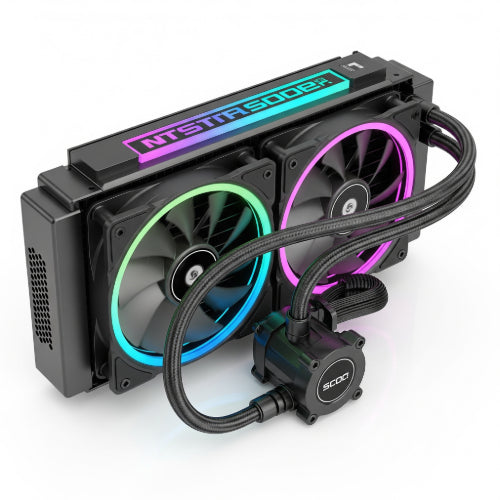
- Upgrade Cooler: If you have a powerful CPU with a basic cooler, upgrading to a larger air cooler or an AIO (All-in-One) liquid cooler can drastically improve temperatures.
3. System Instability / Random Shutdowns
- Issue: Your computer freezes, crashes, or spontaneously shuts down, often during demanding tasks.
- Cause: This is a classic symptom of overheating. When components get too hot, they can become unstable or trigger automatic shutdowns to prevent permanent damage.
-
How to Fix:
- Diagnose Temperatures: Use monitoring software to confirm if high temperatures precede crashes.
- Apply Solutions from #1 and #2: Address the underlying cooling issues (cleaning, airflow, thermal paste, cooler upgrade).
- Stress Test: After making changes, use stress testing software (e.g., Prime95 for CPU, FurMark for GPU) to put your components under load and verify stable temperatures.
4. Liquid Cooling (AIO/Custom Loop) Specific Issues
- Issue: Pump noise, gurgling sounds, or significantly higher temperatures than usual.
-
Cause:
- Air Bubbles: Gurgling often indicates air trapped in the loop.
- Pump Failure: No noise/flow and high temps usually mean the pump is dead.
- Blockage: Rare, but possible in custom loops.
-
How to Fix:
- Re-orient Radiator/Pump: For AIOs, ensure the pump isn't at the highest point in the loop where air can collect. Gently tilt/move the case while running to help dislodge air bubbles.
- Check Pump Power: Ensure the pump's power cable is securely connected to the motherboard (often a dedicated "AIO_PUMP" or "CPU_FAN" header).
- Replace AIO: If the pump fails or performance degrades significantly, AIOs are typically sealed units and must be replaced.
- Custom Loops: Requires draining, inspection, and refilling.
Preventative Maintenance is Key:
Just like changing the oil in your car, regular PC cleaning is crucial. Aim to dust out your PC every 3-6 months, especially if you have pets or live in a dusty environment. Monitoring your temperatures and addressing minor issues promptly will extend the lifespan of your components and ensure your workstation remains a powerful and reliable tool for years to come.