Bridging the Gap: Troubleshooting Common Issues with Media Converters
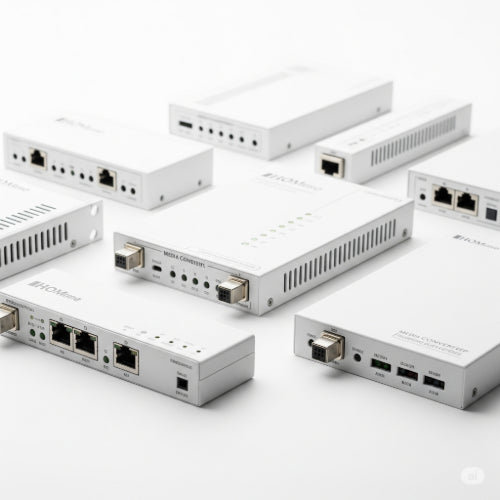
Media converters are unsung heroes in many network setups. These compact devices enable seamless communication between different types of network media, most commonly converting Ethernet signals over copper cabling to fiber optic signals, and vice-versa. They're essential for extending network reach, integrating older equipment, or connecting different parts of a building.
However, when a media converter acts up, it can cause frustrating network outages or performance issues. While they're generally reliable, knowing how to troubleshoot common problems can save you significant downtime. Here's a guide to diagnosing and resolving issues with your media converters:
1. The Obvious First: Power and Link Lights
Just like any network device, the first step is to check its basic operational status.
- Power Light: Is the power indicator light on? If not, check the power adapter, the outlet it's plugged into, and ensure the adapter is securely connected to the converter. Try a different power outlet or, if possible, a known working power adapter of the correct voltage and amperage.
-
Link/Activity Lights (Copper Side - RJ45): This light indicates a valid connection to the Ethernet device (e.g., switch, router, computer).
- No Link Light: The Ethernet cable might be faulty, or the connected device might be off or misconfigured. Try a different Ethernet cable, a different port on the switch, or directly connect the Ethernet device to another known working port.
- Solid Link Light: A good physical connection.
- Flashing Activity Light: Data is actively being transmitted, which is normal and good.
-
Link/Activity Lights (Fiber Side - SFP/Fiber Port): This light indicates a valid fiber optic connection.
- No Link Light: The fiber cable might be damaged or unplugged, or the device on the other end of the fiber link is off or faulty. Ensure the fiber connectors are clean and properly seated. Check the fiber cable for kinks or sharp bends.
- Solid Link Light: A good fiber connection.
- Flashing Activity Light: Data is actively being transmitted over fiber.
Crucial Fiber Tip: Remember that fiber optic connections require a transmit (Tx) connection to a receive (Rx) connection. If you're not getting a link, try "flipping" the fiber strands on one end (Tx to Rx, Rx to Tx) if they are not clearly labeled or you're unsure of the correct pairing.
2. Check the Cables (Both Copper and Fiber)
Cables are often the weakest link in any network.
- Ethernet Cable: Even if the link light is on, a damaged or poor-quality Ethernet cable can cause intermittent issues or slow speeds. Try swapping it with a known good cable. Ensure you're using the correct category cable (e.g., Cat5e or Cat6) for your network speed.
-
Fiber Optic Cable:
- Physical Damage: Inspect the fiber cable for obvious damage, especially kinks, sharp bends, or cuts. Fiber is more fragile than copper.
- Cleanliness: Fiber optic connectors are extremely sensitive to dust and dirt. Use a dedicated fiber optic cleaning kit (one-click cleaners, lint-free wipes, and pure alcohol) to clean the ferrules on both ends of the fiber cable and the ports on the media converter and connected fiber device. Never touch the end face of a fiber connector.
- Correct Type: Ensure you are using the correct type of fiber cable (Single-Mode for single-mode converters, Multi-Mode for multi-mode converters) and the correct connector type (LC, SC, ST, etc.).
- Distance: Verify that the fiber run is within the maximum supported distance for your specific media converter and fiber type. Exceeding the distance can lead to signal loss.
3. Loopback Test: Isolate the Converter
If you suspect the media converter itself, a loopback test can help determine if it's faulty.
- Copper Loopback: Connect a short Ethernet cable from the converter's RJ45 port directly back into itself (if it has two RJ45 ports). If the link light comes on, the copper side is likely working.
- Fiber Loopback (for SFP/GBIC ports): Connect a short fiber patch cable from the converter's Tx port to its Rx port on the same converter. If the fiber link light comes on, the fiber side is likely functional.
- Note: This test primarily checks the converter's ability to establish a link with itself, not necessarily its ability to transmit data perfectly.
4. Check Configuration (for Managed Converters or Those with DIP Switches)
Some media converters are "unmanaged" (plug-and-play), but others, especially higher-end or industrial models, might have DIP switches or a web interface for configuration.
- DIP Switches: Ensure any DIP switches are set correctly for your application (e.g., half/full-duplex, LFP (Link Fault Pass-Through) settings). Refer to the converter's manual.
- Managed Interface: If it's a managed converter, log into its web interface to check port status, error counters, and any advanced settings that might be misconfigured.
5. Power Cycle the Converter (and Connected Devices)
A simple reboot can often clear temporary glitches.
- Power Cycle: Unplug the media converter's power, wait 10-15 seconds, and plug it back in.
- Reboot Connected Devices: Also reboot the Ethernet switch, router, or server connected to the media converter. Sometimes, the issue lies with the device trying to communicate with the converter.
When to Call for Backup:
If you've systematically gone through these steps and your media converter is still not functioning, it might indicate a more serious internal hardware failure. At this point, consider:
- Replacing the Converter: If the unit is old or has experienced power surges.
- Contacting Technical Support: Reach out to the media converter's manufacturer for further diagnostics or warranty claims.
By methodically troubleshooting, you can often pinpoint and resolve media converter issues, restoring the vital connections that keep your network running smoothly.