The Ultimate Comparison Between SSDs and HDDs: Which is Right for You?
In the world of computing, your storage drive is where all your digital life resides – from your operating system and applications to your cherished photos and crucial work documents. For years, the Hard Disk Drive (HDD) was the undisputed king, but the advent of the Solid State Drive (SSD) has revolutionized storage technology. While both serve the same fundamental purpose, their underlying technologies are vastly different, leading to distinct performance characteristics, costs, and ideal use cases.
So, when you're building a new PC, upgrading an old one, or simply trying to understand your options, which storage solution is right for you? Let's dive into the ultimate comparison.
Hard Disk Drives (HDDs): The Traditional Workhorse
HDDs have been around for decades and rely on mechanical parts. Data is stored on rapidly spinning platters (disks) read and written by magnetic heads that float just nanometers above the surface.
Pros of HDDs:
-
Cost-Effective per Gigabyte: HDDs offer the lowest cost per gigabyte of storage. If you need vast amounts of storage without breaking the bank (think terabytes for media libraries or backups), HDDs are the clear winner.
-
High Capacity: They are available in capacities up to 20TB or more, making them ideal for storing massive amounts of data.
-
Proven Technology: They are a mature and well-understood technology, with decades of refinement.
Cons of HDDs:
-
Speed Limitations: Being mechanical, HDDs are significantly slower than SSDs. Boot times, application loading, and file transfers take much longer.
-
Fragility: The moving parts make HDDs susceptible to damage from drops or impacts. A sudden jolt can lead to data loss or drive failure.
-
Noise and Heat: The spinning platters and moving read/write heads generate audible noise and more heat compared to SSDs.
-
Higher Power Consumption: They generally consume more power, which can impact laptop battery life and energy bills in data centers.
-
Larger Form Factors: Typically available in 3.5-inch for desktops and 2.5-inch for laptops, they are larger than most SSDs.
Solid State Drives (SSDs): The Speed Demon
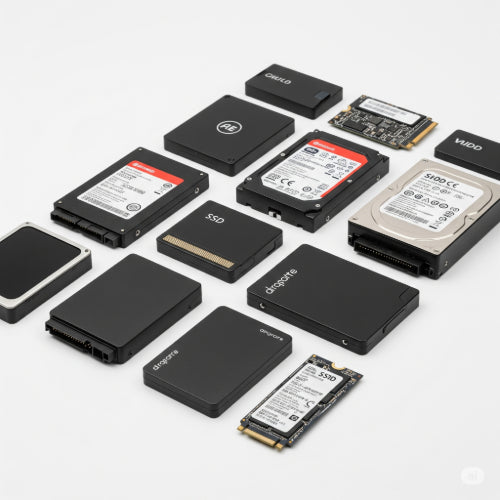
SSDs represent a modern leap in storage. They store data on interconnected flash memory chips (similar to a USB drive) and have no moving parts.
Pros of SSDs:
-
Blazing Speed: This is their biggest advantage. SSDs offer dramatically faster boot times, lightning-quick application loading, and instantaneous file transfers. This transforms the overall responsiveness of your computer.
-
Durability and Reliability: Without moving parts, SSDs are much more resistant to physical shock and vibration, making them ideal for laptops and mobile devices. They are also generally more reliable over their lifespan than HDDs.
-
Silent Operation: No moving parts means SSDs are completely silent during operation.
-
Lower Power Consumption: They consume significantly less power, extending laptop battery life and reducing energy costs in data centers.
-
Smaller Form Factors: Available in various compact sizes, including 2.5-inch, M.2 (looking like a stick of RAM), and NVMe (M.2 drives utilizing the PCIe interface for even greater speed).
Cons of SSDs:
-
Higher Cost per Gigabyte: While prices have dropped considerably, SSDs are still more expensive per gigabyte than HDDs. This can be a barrier for users needing massive storage capacities.
-
Limited Write Cycles (Theoretical): Flash memory cells can only be written to a finite number of times. However, modern SSDs use advanced "wear-leveling" algorithms that distribute writes evenly, making this a non-issue for the vast majority of users over many years of typical use.
-
Data Recovery Complexity: If an SSD fails, data recovery can be more challenging and expensive than with HDDs.
The Ultimate Comparison: Side-by-Side
Which is Right for You? Finding Your Perfect Storage Solution
The "best" drive isn't universal; it depends entirely on your needs, budget, and priorities:
-
The Everyday User / Student:
-
Recommendation: An SSD (256GB - 512GB) as your primary drive for the operating system and essential applications. If you have a large media library or many documents, consider a secondary, higher-capacity HDD. This "hybrid" approach offers speed where it matters most and affordability for bulk storage.
-
-
The Gamer:
-
Recommendation: A large SSD (1TB - 2TB NVMe if possible) for your operating system and your most frequently played games to enjoy faster loading times and smoother gameplay. A secondary HDD can be used for your game library, older titles, and other media files.
-
-
The Content Creator / Professional (Video Editor, Graphic Designer):
-
Recommendation: A spacious and fast NVMe SSD (1TB+) for your operating system, all applications, and active projects. The speed will significantly cut down rendering, loading, and transfer times. For archival footage, completed projects, and vast media libraries, a large external or internal HDD is a cost-effective choice.
-
-
The Budget-Conscious User:
-
Recommendation: Prioritize a smaller SSD (128GB - 256GB) for your operating system to get a significant performance boost. Then, pair it with a larger HDD for all your files and less frequently used programs.
-
-
Servers / Network Attached Storage (NAS):
-
Recommendation: For raw storage capacity and cost-effectiveness, HDDs are still dominant here. However, SSDs are increasingly used for caching layers (SSD cache for HDD arrays) or for specific, high-performance applications on the server itself.
-
The Verdict: Often a Hybrid Solution
In many cases, the optimal solution isn't one or the other, but a strategic combination of both. By using an SSD for your operating system and frequently accessed applications (where speed is paramount) and an HDD for bulk storage of less critical or archival data (where capacity and cost-effectiveness are key), you can build a balanced, high-performing, and cost-efficient system that truly meets your needs.