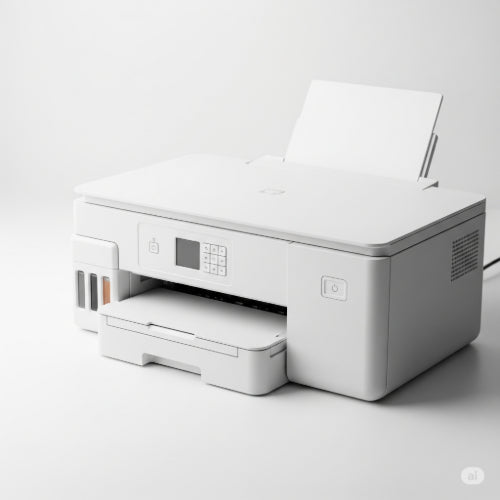
The Tangled Web: How to Solve Printer Connectivity Problems in the Office
The office printer – a vital workhorse that can, at times, feel like the most temperamental device in the building. Few things are as frustrating as hitting "Print" and hearing nothing but the silent whir of your computer, while the printer sits stoically, refusing to acknowledge your command. Printer connectivity problems are a common office headache, but with a systematic approach, most can be diagnosed and resolved quickly.
This guide will help you untangle the web of potential issues and get your office printing smoothly again.
1. The Power-Up and Physical Check
Before diving into settings, always start with the simplest solutions. Many connectivity issues are surprisingly basic.
-
Is It On?
-
Check: Is the printer powered on? Look for power lights. Is it in sleep mode? Wiggle a mouse or press a button on the printer to wake it.
-
Fix: Turn it on!
-
-
Cables, Cables, Cables:
-
Check: If it's a USB printer, is the USB cable securely connected to both the printer and the computer? If it's a network printer (Ethernet), is the Ethernet cable firmly plugged into the printer and the wall/switch? Are the cable ends damaged?
-
Fix: Re-seat the cables. Try a different USB or Ethernet cable.
-
-
Network Status (for Network Printers):
-
Check: Does the printer have an active network connection? Many network printers have a network status light or a display that shows network activity. Is it showing an IP address?
-
Fix: If there's no network connection, check the switch port it's plugged into. Try a different port. Ensure the network cable is working.
-
2. Software and Driver Diagnostics
Once you've confirmed the physical connections, move to the software side.
-
Restart Everything:
-
Check: Sometimes, a simple reboot can clear temporary glitches.
-
Fix: Restart the printer, the computer you're trying to print from, and even the network router/switch (if it affects multiple users).
-
-
Printer Driver Issues:
-
Check: Is the correct printer driver installed on your computer? Have drivers become corrupted or outdated?
-
Fix:
-
Go to your computer's "Devices and Printers" (Windows) or "Printers & Scanners" (Mac).
-
Remove the problematic printer.
-
Go to the printer manufacturer's official website, download the latest driver specifically for your printer model and operating system, and reinstall it.
-
-
-
Printer Queue Clutter:
-
Check: Sometimes, a stuck print job can hold up everything else.
-
Fix:
-
Open the print queue (double-click the printer icon in "Devices and Printers").
-
Cancel all pending documents.
-
If a job won't clear, restart the print spooler service (Windows: Search "Services," find "Print Spooler," right-click and restart).
-
-
3. Network Configuration Deep Dive (for Network Printers)
Network printers add a layer of complexity, but common issues are manageable.
-
IP Address Conflicts:
-
Check: Is the printer using a unique IP address on the network? If another device has the same IP, it causes conflicts. You can usually find the printer's IP address on its display panel or by printing a network configuration page.
-
Fix:
-
If your network uses DHCP (Dynamic Host Configuration Protocol), ensure the printer is set to obtain an IP address automatically.
-
If you assign static IPs, ensure the printer's IP is unique and outside your DHCP server's range. Consider reserving the IP address for the printer in your router/DHCP server settings.
-
-
-
Firewall Blocking:
-
Check: Your computer's firewall or network firewall might be blocking communication with the printer.
-
Fix: Temporarily disable your computer's firewall (if it's a personal firewall) to see if that resolves the issue. If it does, you'll need to create an exception for the printer in your firewall settings. For network firewalls, consult your IT administrator.
-
-
Incorrect Printer Port:
-
Check: When setting up a network printer, you specify a port. Is it correctly configured for a Standard TCP/IP Port with the printer's IP address?
-
Fix: In your computer's printer properties, check the "Ports" tab and ensure the correct IP address is entered for the Standard TCP/IP Port.
-
-
Wireless Connectivity (for Wi-Fi Printers):
-
Check: Is the printer connected to the correct Wi-Fi network? Is the Wi-Fi signal strong? Has the Wi-Fi password changed?
-
Fix: Reconfigure the printer's Wi-Fi settings, ensuring it connects to the correct SSID and password. Move the printer closer to the wireless access point if the signal is weak.
-
4. Advanced Troubleshooting & Next Steps
-
Test from Another Computer: If one computer can't print but others can, the problem lies with that specific computer. If no computers can print, the issue is likely with the printer itself or the network connection to the printer.
-
Print a Test Page: Most printers have a built-in function to print a test page directly from the printer's control panel. If this works, the printer hardware is fine, and the problem is likely with the connection from your computer or network.
-
Factory Reset the Printer: As a last resort, if all else fails, you can perform a factory reset on the printer. Be warned: This will erase all custom settings, including network configurations, so you'll have to reconfigure everything from scratch.
-
Contact IT Support / Manufacturer: If you've gone through these steps and still can't resolve the issue, it's time to escalate. Provide your IT support team or the printer manufacturer with a detailed account of the troubleshooting steps you've already taken.
By approaching printer connectivity issues systematically, you can often pinpoint the problem quickly and get back to seamless printing, keeping your office productivity flowing.