The Director's Cut: How to Optimize Your Workstation for Video Editing
Video editing is a demanding task. It pushes your computer's hardware to its limits, turning casual Browse machines into stuttering, unresponsive bricks. If you're serious about creating compelling video content, optimizing your workstation isn't just about speed; it's about a fluid workflow that allows your creativity to flourish without technical bottlenecks.
This guide will walk you through the key components and settings to tweak, transforming your workstation into a video editing powerhouse.
1. The Core Components: Where Your Money Should Go
Think of your workstation as a finely tuned orchestra, where each component plays a crucial role. For video editing, some instruments are far more important than others.
-
CPU (Central Processing Unit): The Brains of the Operation
-
Why it matters: Video encoding, decoding, rendering, and handling complex effects are heavily CPU-dependent. More cores and higher clock speeds mean faster processing.
-
Optimization: Aim for modern CPUs with a high core count (e.g., Intel i7/i9, AMD Ryzen 7/9 or Threadripper). If your budget allows, prioritize higher core counts over slightly faster clock speeds for most video editing tasks.
-
-
GPU (Graphics Processing Unit): The Visual Accelerator
-
Why it matters: While not as universally critical as the CPU for all tasks, a powerful GPU significantly accelerates real-time playback, rendering of GPU-intensive effects (like color grading, transitions, and certain plugins), and hardware-accelerated encoding/decoding (e.g., NVIDIA's NVENC or AMD's VCN).
-
Optimization: Invest in a dedicated graphics card from NVIDIA (RTX series) or AMD (Radeon RX series). Look for cards with ample VRAM (8GB or more is a good starting point for 4K editing).
-
-
RAM (Random Access Memory): Your Workspace
-
Why it matters: RAM is where your editing software stores active project files, media clips, and undo history. Insufficient RAM leads to constant disk caching, slowing everything down.
-
Optimization:
-
Minimum: 16GB for HD editing.
-
Recommended: 32GB for 4K editing and complex projects.
-
Ideal: 64GB or more for demanding 4K workflows, multi-camera edits, and heavy use of effects. Always use matched sticks of RAM for dual-channel (or quad-channel) performance.
-
-
-
Storage: Speed and Capacity
-
Why it matters: Hard drives are often the biggest bottleneck. Slow storage means frustratingly long load times, dropped frames during playback, and agonizingly slow exports. You need both speed for active projects and capacity for archival.
-
Optimization:
-
OS & Applications: A fast NVMe SSD (PCIe Gen4 or Gen5 if supported by your motherboard) for your operating system and editing software. This ensures quick boot-ups and rapid application loading.
-
Working Media: A separate, equally fast NVMe SSD for your current project files and scratch disk. This is critical for smooth playback, especially with high-resolution footage.
-
Render Cache/Exports: A third, dedicated SSD (SATA or NVMe) for your render cache and final exports can further improve performance by preventing read/write contention.
-
Archival: Large-capacity HDDs (Hard Disk Drives) or a NAS (Network Attached Storage) solution for storing finished projects and raw footage that isn't actively being worked on.
-
-
2. Software & System Configuration: Fine-Tuning for Performance
Hardware is only half the battle. Your software setup and system settings play an equally vital role.
-
Choose the Right Editing Software: While personal preference plays a role, ensure your chosen NLE (Non-Linear Editor) like Adobe Premiere Pro, DaVinci Resolve, or Final Cut Pro (Mac only) is optimized for your hardware. Research how each software leverages CPU, GPU, and RAM.
-
Driver Updates:
-
GPU Drivers: Regularly update your graphics drivers directly from NVIDIA or AMD's website. These updates often include performance optimizations and bug fixes for video editing applications.
-
Motherboard Chipset Drivers: Keep these updated for optimal communication between your components.
-
-
Operating System Optimization:
-
Power Plan (Windows): Set your power plan to "High Performance" to ensure your CPU and GPU aren't being throttled.
-
Background Processes: Close unnecessary applications and background processes while editing.
-
Disk Defragmentation (HDD) / TRIM (SSD): Ensure TRIM is enabled for your SSDs (usually automatic in modern OSs) and avoid defragmenting SSDs.
-
-
Editing Software Settings:
-
Scratch Disk/Cache Location: Point your editing software's scratch disk and media cache to your dedicated fast SSD. Never use your OS drive for this if you have other options.
-
Playback Resolution: During editing, lower your playback resolution (e.g., 1/2 or 1/4 resolution) to ensure smooth real-time playback, especially with high-resolution footage.
-
Proxy Workflows: For extremely demanding codecs or 4K/8K footage, learn and utilize proxy workflows. This involves creating lower-resolution versions of your media for editing and then relinking to the original high-resolution files for export.
-
Hardware Acceleration: Ensure hardware acceleration is enabled in your software's preferences (e.g., Mercury Playback Engine in Premiere Pro, GPU acceleration in DaVinci Resolve).
-
3. Cooling and Ergonomics: The Unsung Heroes
Don't overlook these critical aspects that impact both performance and your long-term comfort.
-
Cooling: High-performance components generate heat. Overheating leads to thermal throttling, where your CPU/GPU automatically slow down to prevent damage.
-
Solution: Invest in a good CPU cooler (AIO liquid cooler or high-end air cooler), ensure adequate case airflow with multiple fans, and keep your workspace dust-free.
-
-
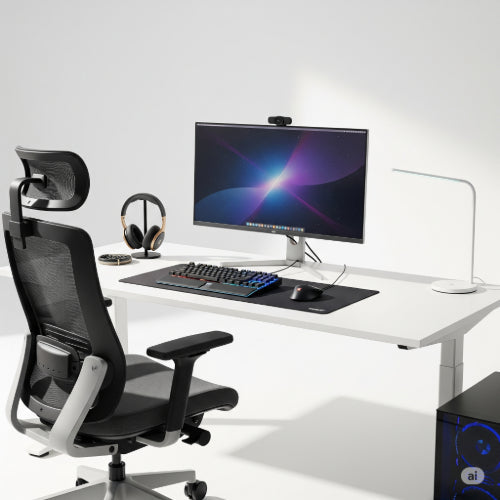
Ergonomics: Long editing sessions can take a toll.
-
Solution: Invest in a comfortable chair, an ergonomic keyboard and mouse, and position your monitor(s) at eye level. Consider a second monitor for timelines, bins, and scopes.
-
Optimizing your workstation for video editing is an ongoing process. As technology evolves and your projects become more complex, you may need to upgrade components. However, by focusing on these core areas and diligently managing your software settings, you'll create a powerful, efficient editing machine that lets you focus on bringing your creative vision to life.