When Your Network Goes Rogue: Troubleshooting Tips for Network Switches
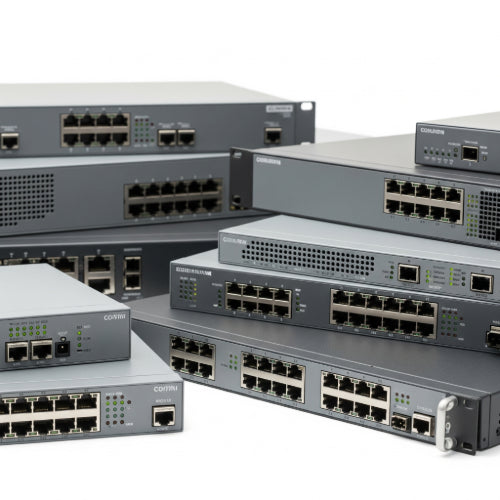
Network switches are the workhorses of your office connectivity. They quietly manage the flow of data between all your connected devices, ensuring your computers, printers, servers, and VoIP phones can communicate seamlessly. But when a switch starts acting up, the ripple effect can bring productivity to a halt. Slow speeds, dropped connections, or complete network outages often point a finger at the humble network switch.
Don't panic when your network goes rogue! Many common switch issues can be diagnosed and resolved with a few systematic troubleshooting steps. Here's how to get your office network back in top shape:
1. The Obvious First: Check Physical Connections & Power
It sounds simple, but a surprising number of network issues stem from loose or disconnected cables.
- Power Supply: Is the switch powered on? Check the power cord connection to the switch and the wall outlet. Look for any power indicator lights on the switch itself – are they on and solid?
- Ethernet Cables: Examine all Ethernet cables connected to the switch. Are they securely seated in their ports? Try unplugging and re-plugging them. Look for any visible damage to the cables (kinks, fraying, broken tabs).
-
Port Lights: Each port on a switch typically has indicator lights (Link/Activity).
- No Link Light: If a port light is off for a connected device, it usually means there's no physical connection. Try a different cable, a different port on the switch, or check the device itself.
- Flashing Link Light: This indicates data activity, which is good.
- Solid Link Light (no flashing): This means there's a connection but no data activity, which could point to an issue with the connected device or its configuration.
2. Isolate the Problem: Rule Out Other Devices
To confirm the switch is the culprit, try to isolate the issue:
- Single Device vs. Multiple Devices: Is only one device experiencing network problems, or are all devices connected to the switch affected? If it's just one, the problem might be with that device's network adapter, cable, or IP configuration.
- Direct Connection Test: If possible, try connecting a problematic device directly to your router (bypassing the switch) to see if it functions correctly. This helps determine if the switch is truly the source of the issue.
- Test with a Different Port: Move a known working device to a port that's having issues, and move a problematic device to a known working port. This helps identify if a specific port on the switch is faulty.
3. The Reboot Remedy: Power Cycle the Switch
Just like many electronic devices, a simple reboot can often resolve temporary glitches or firmware issues.
- Power Cycle: Unplug the switch's power cord, wait for about 30 seconds (to ensure all residual power drains), then plug it back in. Allow a few minutes for the switch to fully boot up and re-establish connections.
4. Managed Switch Specifics: Delve Deeper
If you're using a managed switch, you have more diagnostic tools at your disposal.
-
Check the Admin Interface: Access the switch's web-based or command-line interface.
- Logs: Look for error logs or system messages that might indicate issues like port errors, power problems, or configuration conflicts.
- Port Status: Verify the status of individual ports. Are they enabled? Are there any error counters increasing?
- VLAN Configuration: If you're using VLANs, ensure the connected device is assigned to the correct VLAN and that VLAN tagging is configured properly on both the switch and the connected device.
- Firmware Version: Confirm the firmware is up to date. An outdated firmware can sometimes cause instability.
- Reset to Factory Defaults (Last Resort): If all else fails and you suspect a configuration issue, you might consider resetting a managed switch to its factory default settings. CAUTION: This will erase all your custom configurations, so ensure you have a backup of your settings if possible, or be prepared to reconfigure it from scratch.
5. Environmental Factors: Overheating & Placement
Switches, especially in server racks, can generate heat.
- Ventilation: Ensure the switch has adequate airflow. Are its vents blocked? Is it in an enclosed space without proper cooling? Overheating can cause intermittent performance issues or complete failure.
- Dust Buildup: Dust can accumulate and impede airflow. Safely power down and clean the switch with compressed air if needed.
6. Consider a Failing Power Adapter (for external adapters)
If your switch uses an external power brick, it might be failing, leading to intermittent power or insufficient current.
- Swap (if possible): If you have another compatible power adapter, try swapping it out to see if the issue resolves.
By systematically working through these troubleshooting steps, you can identify and often resolve common network switch issues, restoring your office's crucial connectivity and keeping your team productive. If problems persist after these checks, it might indicate a more serious hardware failure, in which case replacement or professional assistance would be the next step.