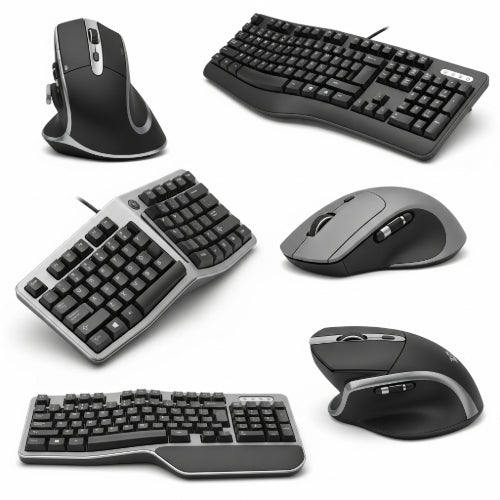
Type Smarter, Click Healthier: Best Practices for Ergonomic Keyboards and Mice
In our increasingly digital world, keyboards and mice are extensions of our hands. While essential tools, prolonged or improper use can lead to discomfort, pain, and even debilitating conditions like Carpal Tunnel Syndrome, Tendonitis, and Repetitive Strain Injuries (RSIs). The good news? With a few simple best practices, you can transform your typing and clicking habits into a healthier, more comfortable, and ultimately more productive experience.
It's time to stop enduring discomfort and start optimizing your input devices for true ergonomic bliss.
Why Ergonomics Matters: Understanding the Risks
Before diving into solutions, it's crucial to understand why ergonomic practices are vital:
- Repetitive Strain Injuries (RSIs): Caused by repetitive movements, awkward postures, and forceful exertions.
- Carpal Tunnel Syndrome: Compression of the median nerve in the wrist, leading to numbness, tingling, and weakness.
- Tendonitis: Inflammation of a tendon, often in the wrist or forearm.
- Neck and Shoulder Pain: Often a result of poor posture or reaching too far for input devices.
- Reduced Productivity: Discomfort and pain distract you, leading to decreased focus and efficiency.
Best Practices for Keyboard Ergonomics
Your keyboard is where most of your hand and wrist movements occur. Optimize its use with these tips:
-
Maintain a Neutral Wrist Position: This is the golden rule. Your wrists should be straight, not bent up (extension), down (flexion), or to the side (ulnar/radial deviation).
- Avoid Wrist Rests as a Crutch: Wrist rests are for resting your wrists during breaks, not for supporting them while typing. Typing with wrists resting can put pressure on the carpal tunnel.
-
Adjust Keyboard Tilt:
- Flat or Negative Tilt: If your keyboard has legs, collapse them or even tilt the keyboard away from you (negative tilt). This helps maintain that neutral wrist position, especially if your keyboard is close to your body.
- Integrated Wrist Rest: Some ergonomic keyboards have a built-in, non-removable wrist rest that helps guide your hands into a neutral position.
- Elbows at 90-100 Degrees: Your elbows should be close to your body and bent at a comfortable, slightly open angle. This prevents hunching and shoulder tension.
- Keep Shoulders Relaxed: Avoid shrugging your shoulders or tensing them up. Ensure your keyboard is positioned so you don't have to reach.
-
Consider an Ergonomic Keyboard:
- Split Keyboards: Separate the key sections, allowing you to position your hands naturally with less ulnar deviation.
- Tent Design: Some split keyboards also elevate the middle, creating a "tent" shape that reduces pronation (palms facing down).
- Mechanical Keyboards: Offer varying levels of tactile feedback and actuation force, which some users find more comfortable and responsive.
- Compact Keyboards: Keyboards without a numeric keypad can bring your mouse closer, reducing reaching.
Best Practices for Mouse Ergonomics
The mouse is a common culprit for wrist and shoulder issues due to repetitive micro-movements.
- Keep the Mouse Close: Position your mouse as close to your keyboard as possible to minimize reaching, which strains the shoulder and arm. If using a full-size keyboard, consider a compact keyboard or placing the mouse directly in front of the numeric pad (if you rarely use it).
- Use Your Whole Arm, Not Just Your Wrist: When moving the cursor across the screen, try to move your entire forearm from the elbow or shoulder, rather than just flexing your wrist. This distributes the work and reduces strain on the wrist.
- Maintain a Neutral Wrist: Similar to keyboard use, avoid bending your wrist up, down, or to the sides.
- Relax Your Grip: Don't clench the mouse. A light, relaxed grip is all that's needed.
-
Explore Ergonomic Mouse Options:
- Vertical Mouse: Positions your hand in a "handshake" grip, which reduces forearm pronation and often feels more natural.
- Trackball Mouse: Moves the cursor by rolling a ball with your thumb or fingers, keeping your hand stationary. Excellent for minimizing wrist movement.
- Roller Mouse: Sits in front of your keyboard, allowing you to control the cursor with a roller bar using both hands or fingers, reducing strain on a single hand.
- Contour Mouse: Designed to fit the natural curve of your hand, providing better support.
- Adjust Mouse Sensitivity (DPI): Increase the DPI (Dots Per Inch) setting on your mouse. This means the cursor moves further on screen with less physical mouse movement, reducing overall strain.
- Alternate Hands: If you're comfortable, try switching your mouse to your non-dominant hand for periods throughout the day to give your dominant hand a break.
General Ergonomic Tips for Both Devices
- Take Micro-Breaks: Every 20-30 minutes, take a 1-2 minute break. Stretch your fingers, wrists, arms, and shoulders. Look away from the screen.
- Proper Chair and Desk Height: Ensure your chair is adjusted so your feet are flat on the floor (or on a footrest) and your thighs are parallel to the floor. Your desk height should allow your forearms to be parallel to the floor when typing/mousing.
- Listen to Your Body: If you feel pain, numbness, tingling, or discomfort, do not ignore it. Take a break, adjust your setup, and if symptoms persist, consult a healthcare professional. Early intervention is key.
Investing in ergonomic keyboards and mice, and more importantly, adopting ergonomic practices, is an investment in your long-term health and productivity. Don't wait for pain to be your motivator. Start typing smarter and clicking healthier today!