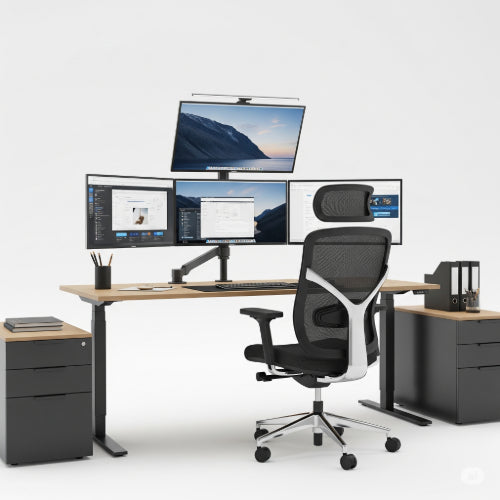
Double Your Workspace, Double Your Productivity: How to Set Up a Multi-Monitor Office Workstation
In the modern office, whether it's a corporate cubicle or a dedicated space in your home, maximizing efficiency is key. For many professionals, juggling multiple applications, documents, and communication channels on a single screen can feel like a constant battle against clutter and endless alt-tabbing. The solution? A multi-monitor workstation.
Setting up two (or even more!) screens can fundamentally transform your workflow, offering a significant boost in productivity, focus, and comfort. If you've been considering expanding your digital real estate, here's a guide to getting started.
Why Go Multi-Monitor? The Undeniable Benefits
The advantages of a multi-monitor setup are clear and compelling:
-
Boosted Productivity: Studies consistently show that adding a second monitor can increase productivity by a significant margin. You spend less time switching between windows, allowing you to compare documents side-by-side, reference information while typing, or keep an eye on communications without interrupting your primary task.
-
Enhanced Multitasking: Whether you're a graphic designer previewing work on one screen while using tools on another, a programmer debugging code with documentation open, or a data analyst comparing spreadsheets, multiple monitors make multitasking seamless and intuitive.
-
Improved Focus: By having all necessary information visible, you reduce the mental load of remembering where specific windows are, allowing you to maintain focus on the task at hand and minimize distractions.
-
Better Organization: Dedicate specific screens to specific tasks or applications (e.g., email on one, main project on another, reference materials on a third). This creates a more organized and less cluttered digital environment.
The Essentials: What You'll Need
Before diving into setup, ensure you have the right components:
-
Monitors:
-
Quantity: Most users start with two, but three or more are possible.
-
Matching Specs: Ideally, choose monitors of the same size, resolution, and refresh rate for a consistent visual experience and smoother mouse transitions.
-
Panel Type: For office work, IPS (In-Plane Switching) panels offer excellent color accuracy and wide viewing angles.
-
-
Compatible Computer/Graphics Card:
-
Most modern desktop PCs and laptops come with integrated graphics that can support at least two external monitors (e.g., via HDMI, DisplayPort, or USB-C).
-
For more than two monitors, or if you're dealing with very high resolutions (like 4K), you might need a dedicated graphics card with multiple output ports.
-
Check your computer's specifications for available video output ports.
-
-
Cables:
-
You'll need a video cable for each monitor. Common types include HDMI, DisplayPort, and USB-C (ensure your USB-C port supports "DisplayPort Alternate Mode"). Match the cable type to the ports on both your computer and your monitors.
-
-
Desk Space & Mounting Options (Optional but Recommended):
-
Ensure you have a spacious desk to accommodate multiple screens comfortably.
-
Monitor Arms/Stands: Consider a dual or triple monitor arm. These free up valuable desk space, offer greater flexibility in positioning, and are crucial for ergonomic adjustments.
-
Step-by-Step Setup Guide:
Once you have your hardware, follow these steps:
-
Power Down: Turn off your computer and monitors before making any connections.
-
Connect Cables:
-
Connect the video cable from your computer's graphics card (or laptop's port/docking station) to the input port on each monitor.
-
Connect the power cable for each monitor to a power outlet.
-
If using a laptop, connect it to a docking station or directly to the monitors via appropriate cables.
-
-
Power On: Turn on your monitors, then power on your computer. Your operating system (Windows or macOS) should automatically detect the new displays.
-
Configure Display Settings:
-
Windows: Right-click on your desktop and select "Display settings."
-
Arrange Displays: Drag and drop the numbered monitor icons in the settings window to match their physical arrangement on your desk. This ensures seamless mouse movement between screens.
-
Multiple Displays: Under the "Multiple displays" dropdown, select "Extend these displays" to use them as one large workspace. "Duplicate these displays" will mirror content, which is rarely desired for productivity.
-
Primary Display: Click on the monitor you want to be your primary display (where your taskbar and desktop icons typically appear) and check "Make this my main display."
-
Resolution & Orientation: For each monitor, ensure the resolution matches its native settings for the sharpest image. You can also change the orientation (e.g., portrait mode) if desired.
-
-
macOS: Go to "System Settings" > "Displays."
-
Arrangement Tab: Drag the monitor icons to match their physical arrangement.
-
Main Display: Drag the white menu bar to the monitor you want as your primary display.
-
Resolution: Select the desired resolution for each monitor.
-
-
Optimize for Comfort and Efficiency: Ergonomic Tips
A multi-monitor setup can put strain on your eyes and neck if not positioned correctly.
-
Monitor Height: The top third of your primary screen (or the top of both screens if used equally) should be at or slightly below eye level when you're sitting comfortably. Use monitor stands or arms to achieve this.
-
Viewing Distance: Position monitors about an arm's length (20-40 inches or 50-100 cm) from your eyes.
-
Angle & Alignment:
-
Primary/Secondary Setup: If you use one monitor predominantly, center it in front of you. Place the secondary monitor to the side, angled slightly inward (15-30 degrees) so you can view it with minimal head movement.
-
Equal Use Setup: If you use both monitors equally, bring their inner edges close together and center the seam in front of you. Angle both monitors slightly inward, like a cockpit dashboard, to keep them within your natural field of vision.
-
-
Lighting & Glare: Position your desk to avoid direct glare from windows or overhead lights on your screens. Adjust monitor brightness and contrast for comfortable viewing.
-
Keyboard and Mouse: Ensure your keyboard and mouse are centered and within easy reach, regardless of your monitor arrangement, to maintain good posture.
Setting up a multi-monitor workstation is an investment in your productivity and well-being. By following these steps and prioritizing ergonomics, you can create an expansive, efficient, and comfortable digital workspace that truly elevates your professional output.