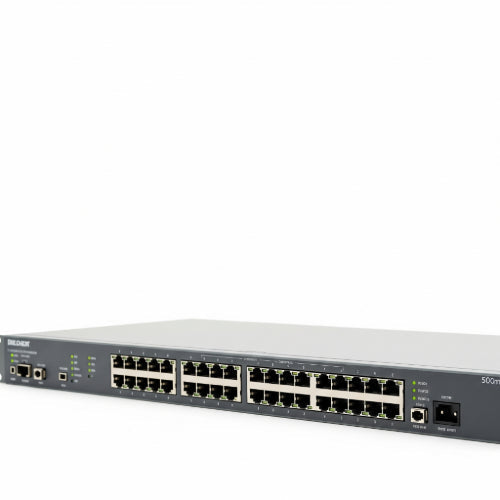
Decoding the Disconnect: How to Troubleshoot Network Switch Connectivity Problems
Your network switch is the silent conductor of your office's digital orchestra. It ensures all your devices – computers, printers, servers, IP phones – can communicate seamlessly. But when this crucial piece of hardware falters, the entire network can grind to a halt, leading to frustrating downtime and lost productivity.
If your devices are showing "no network access," or if individual connections are dropping, don't immediately assume the worst. Many switch connectivity issues can be diagnosed and resolved with a systematic troubleshooting approach. Let's dive into common problems and how to fix them.
1. The "No Link" Light Blues: Physical Layer Issues
The first thing to check is the physical connection. A lack of a "link" light on a switch port (and often on the connected device's network card) is a dead giveaway for a physical layer problem.
Possible Causes:
-
Loose or Damaged Ethernet Cable: The most common culprit.
-
Incorrect Cable Type: Using a straight-through cable where a crossover is needed (less common with modern auto-sensing ports, but still possible), or a faulty cable.
-
Port Failure: The specific port on the switch or the network interface card (NIC) on the device might be faulty.
-
Power Issues: The switch itself might not be receiving power, or the connected device is off.
How to Resolve:
-
Check All Cables: Ensure both ends of the Ethernet cable are securely plugged into the switch port and the device's network port. Listen for the satisfying "click."
-
Swap Cables: Try a known good, different Ethernet cable. This quickly rules out a faulty cable.
-
Try a Different Port: Plug the device into a different port on the switch. If the link light comes on, the original port might be faulty.
-
Reboot the Device: Sometimes, a simple restart of the connected computer, printer, or server can resolve a temporary NIC glitch.
-
Check Power: Verify the switch's power cable is securely plugged in and its power indicator light is on. Also, ensure the connected device is powered on.
-
Examine the Cable for Damage: Look for kinks, cuts, or damaged connectors on the Ethernet cable.
2. Connected but No Communication: IP Address & Configuration Issues
The link lights are on, but devices still can't talk to each other or access the internet. This points to problems higher up the network stack.
Possible Causes:
-
Incorrect IP Address Configuration: Manual static IP addresses that conflict or are outside the network's subnet.
-
DHCP Server Issues: The DHCP server (often your router) isn't assigning IP addresses correctly.
-
Incorrect Subnet Mask or Gateway: Essential network parameters are misconfigured.
-
VLAN Mismatch (Managed Switches): If you're using a managed switch with VLANs, the port might be assigned to the wrong VLAN, preventing communication.
How to Resolve:
-
Verify IP Configuration (Automatic vs. Static):
-
Automatic (DHCP): Ensure the device is set to "Obtain an IP address automatically." If it's not getting one, restart your router/DHCP server.
-
Static: Double-check the static IP address, subnet mask, and default gateway. Ensure the IP address is unique and within the correct range for your network.
-
-
Ping Test: From a working computer, try to ping the IP address of the device that's having issues. If the pings fail, it confirms a communication breakdown. Then, try to ping your default gateway (your router's IP address) to see if you can reach the internet.
-
Check Router/DHCP Server: Log into your router's administration interface. Verify the DHCP server is enabled and working correctly. Look at the list of connected devices to see if the problematic device has obtained an IP address.
-
Managed Switch VLANs: If you have a managed switch, log into its management interface. Verify that the port the device is connected to is assigned to the correct VLAN for your network. Misconfigured VLANs are a common cause of isolated devices.
3. Sluggish Performance: Network Congestion & Duplex Mismatches
Your network is working, but it feels incredibly slow, like wading through treacle.
Possible Causes:
-
Network Congestion: Too much data traffic overwhelming the switch or specific links.
-
Duplex Mismatch: One device is set to half-duplex while the other is full-duplex, leading to inefficient communication and packet collisions.
-
Looping Cables: A cable connected back into the same switch (or forming a loop with another switch) can cause a broadcast storm, bringing the entire network down.
-
Faulty Switch Hardware: The switch itself might be failing or unable to handle the load.
How to Resolve:
-
Monitor Traffic (Managed Switches): If you have a managed switch, use its monitoring tools to identify ports or devices that are generating excessive traffic.
-
Check Duplex Settings: On managed switches, you can manually set the duplex mode (full or auto-negotiate) for each port. Ensure both ends of the connection are set to auto-negotiate, or both are set to full-duplex. Mismatches often cause significant performance degradation.
-
Look for Network Loops: Physically trace cables to ensure no accidental loops have been created. On managed switches, enable Spanning Tree Protocol (STP) to prevent loops.
-
Identify Bandwidth Hogs: Use network monitoring tools to pinpoint specific applications or devices that are consuming disproportionate amounts of bandwidth (e.g., large file transfers, heavy streaming).
-
Consider Upgrading Hardware: If your network consistently experiences congestion, you might need a higher-capacity switch (e.g., from a Fast Ethernet to a Gigabit Ethernet switch) or more switches to segment your network.
4. Intermittent Connectivity: Flaky Connections
Sometimes it works, sometimes it doesn't. These issues can be the most frustrating to diagnose.
Possible Causes:
-
Loose Connections (again!): Cables that are barely seated can cause intermittent drops.
-
Overheating Switch: Poor ventilation can cause the switch to overheat and temporarily fail.
-
Power Fluctuations: Unstable power supply to the switch.
-
Aging Hardware: The switch itself might be nearing the end of its lifespan.
How to Resolve:
-
Reseat All Cables: Firmly push in all Ethernet cables.
-
Check Ventilation: Ensure the switch has adequate airflow and isn't tucked away in a hot, enclosed space. Dust can also contribute to overheating.
-
Use a UPS: Connect your network switch to an Uninterruptible Power Supply (UPS) to protect it from power surges and brownouts.
-
Replace Suspect Hardware: If a port consistently fails on multiple tests, or if the switch is very old and exhibiting erratic behavior, consider replacing it.
When to Call in a Professional
While many switch connectivity issues are resolvable with these steps, some complex problems might require a deeper dive. If you've gone through all these troubleshooting steps and are still facing issues, it might be time to consult an IT professional. They can perform more in-depth diagnostics, including cable testing, advanced network analysis, and configuration auditing.
A well-functioning network is the backbone of modern productivity. By understanding these common switch connectivity problems and knowing how to systematically troubleshoot them, you can minimize downtime and keep your office's digital operations running smoothly.